
Welcome to Conversive!
This guide is designed to help you smoothly navigate the process of creating a Conversive account and getting started with our platform. Whether you're new to our service or need a refresher, this manual will walk you through each step to ensure a seamless and user-friendly sign-up experience. Additionally, we'll answer common questions about how to get a trial account, understand data centers, and verify your account.
How can I get a Conversive account for a trial?
To start using Conversive with a trial account, visit our website and click the Sign Up button. Fill out the required information on the sign-up page, choose the type of account setup, and select your preferred data center. A verification email will be sent to complete the registration. Once verified, you'll have access to a fully-featured trial of the platform.
Steps to Create a Conversive Account:
Sign Up link -> https://app.beconversive.com/app/#/sign-up
Go to the Sign-Up Page: Begin by filling out all the details in the registration form, including your name, email address, and any other required fields.
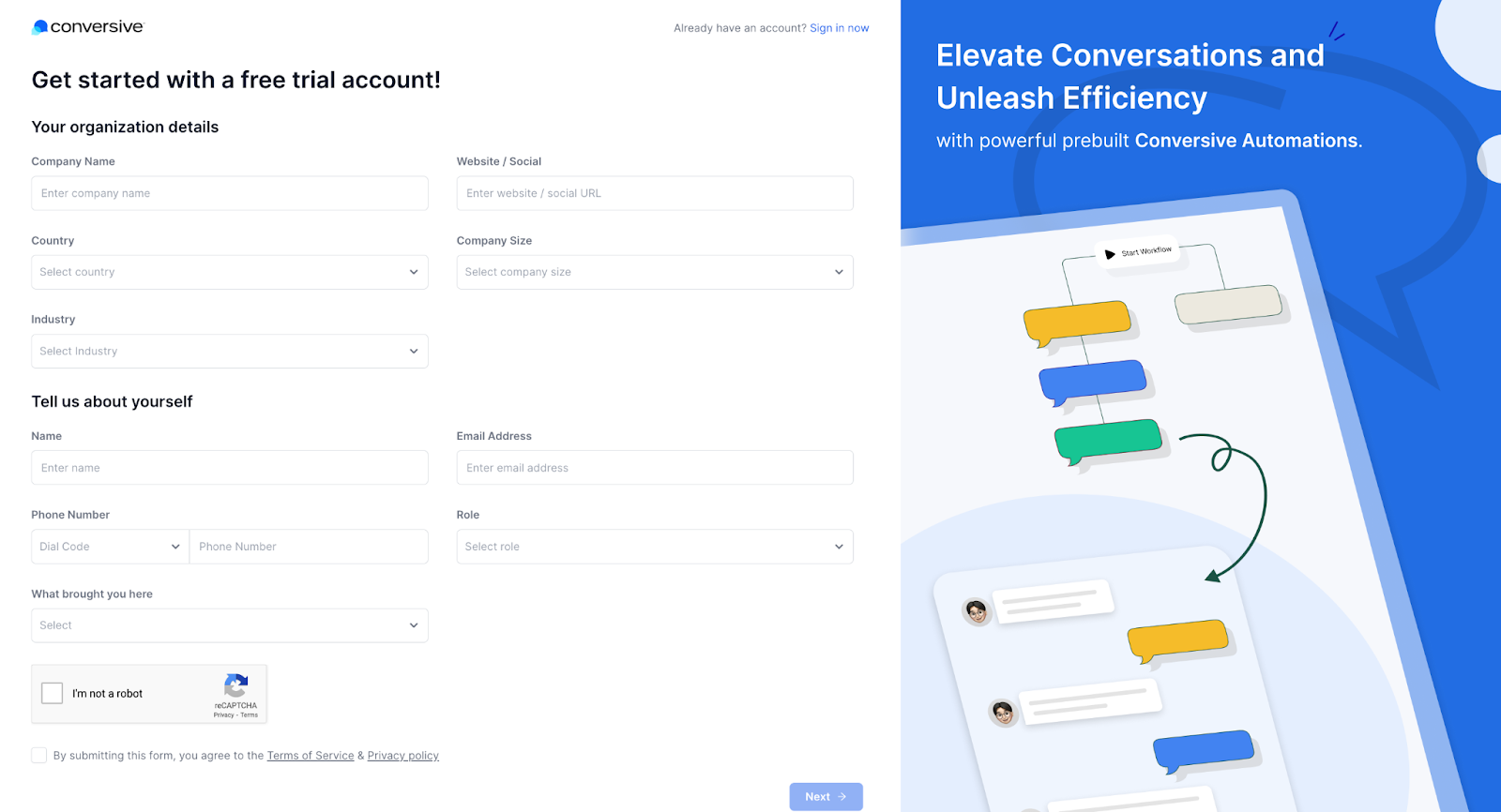
Select Your Account Setup Option: After filling in your details, choose how you'd like to set up your account:
I want to setup account now: You can proceed to create the account on your own.
I need help in account setup: Alternatively, you can request assistance for the setup process.
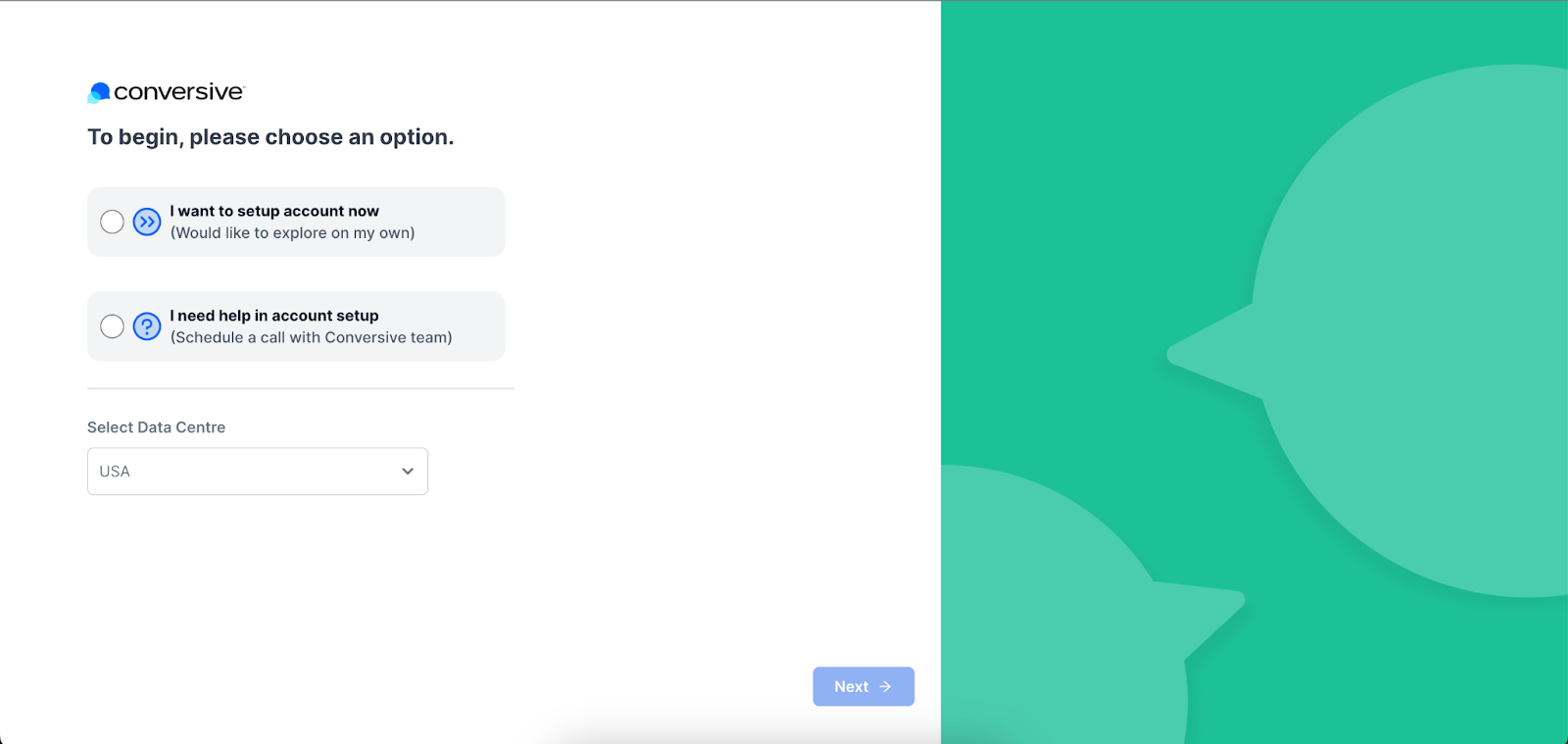
Choose a Data Center: Next, select the data center where you would like to store your data. This decision is based on factors such as your location, performance, and regulatory compliance.
Click ‘Next’: After selecting your setup option and data center, click on the 'Next' button to proceed.
What is a data center, and how to decide which data center to use?
A data center is a secure physical location where your data is stored and processed. When signing up, you'll be prompted to select a data center. We recommend choosing the data center closest to your geographical region to ensure optimal performance and compliance with local data protection regulations.
Conversive has 3 data centers, as listed below:
1. USA (global) Data Center: For users registering to Conversive from North and South America, APAC regions are advised to sign up with our USA data center. This will keep your account data on our USA data center.
2. EU (European) Data Center: For users registering from the European Union, according to the GDPR guidelines, they are advised to sign up with our EU data center. This will keep your account data on our EU data center.
3. AU (Australia) Data Center: For users registering from Australia are advised to sign up with our Australia data center. This will keep your account data on our Australia data center.
How can I Verify my Conversive account?
If you choose to create the account by yourself, you will be directed to a screen asking you to verify your email. Here's how it works:
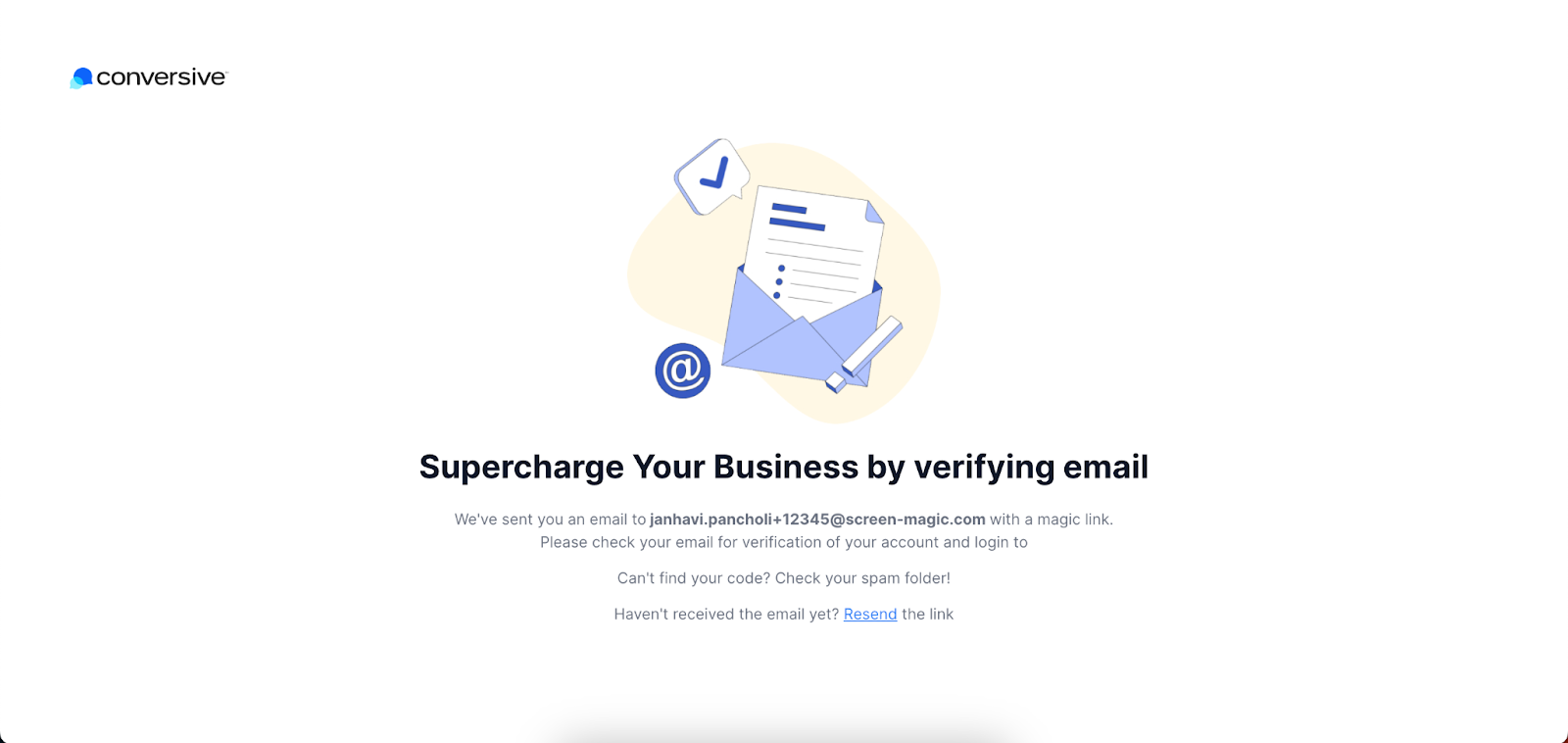
Check your inbox for an email from Conversive with a verification link.
Click on the verification link in the email to confirm your identity.
You will be redirected to the password setup page.
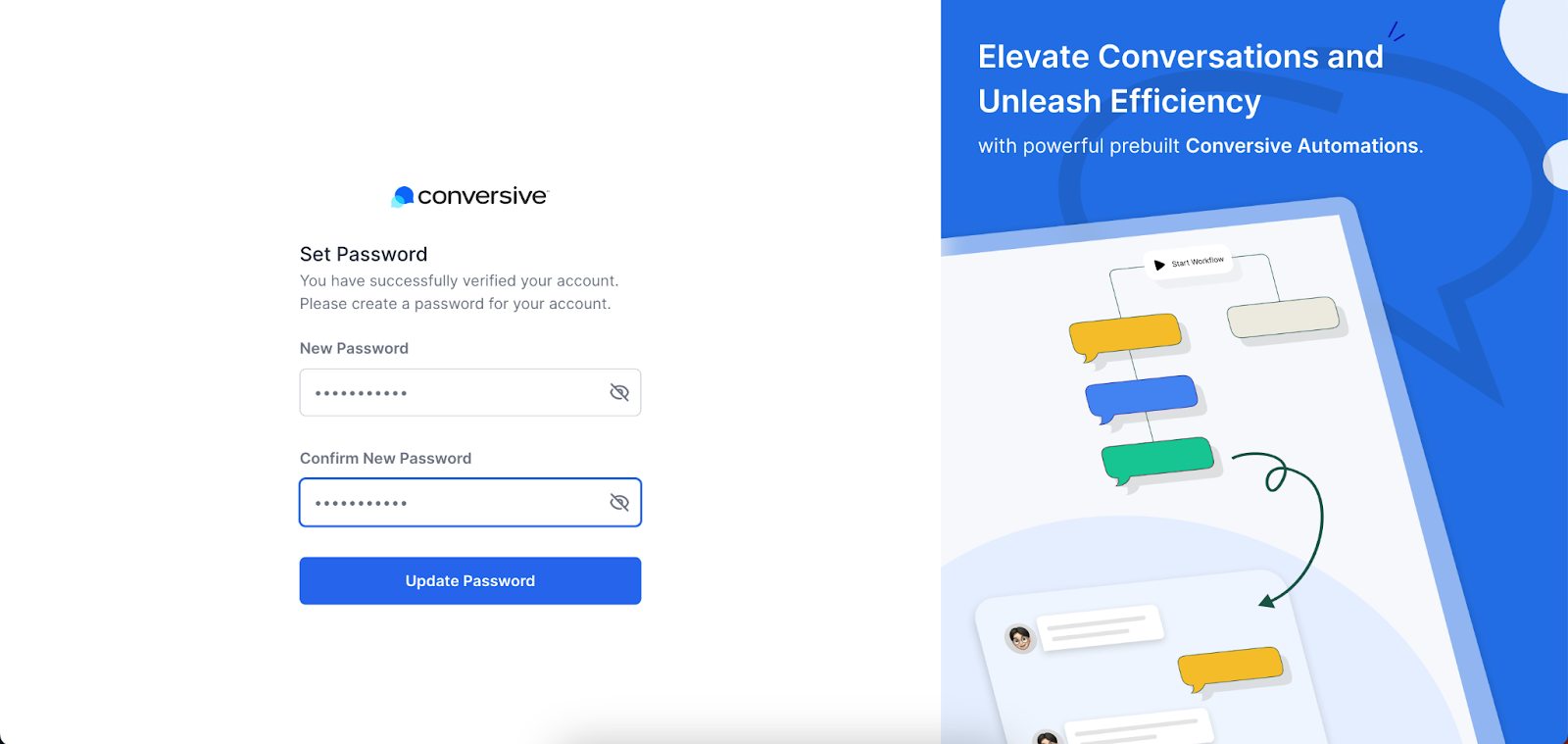
Set up a secure password, and after this, you’ll automatically be logged into your Conversive portal.
Frequently Asked Questions
1. Can I get sales support for creating my account?
Yes, you can! If you need assistance creating your account, you can opt for the "I need help in account setup" during the sign-up process. After selecting this option, you’ll be redirected to schedule a call with our sales or onboarding team. Our team will guide you through the account creation process and set up the account on your behalf. Once your account is ready, a verification email will be sent to you to complete the process.
2. Can I create an account by myself?
Absolutely! You can choose the "I want to setup account now" option during the sign-up process to create and configure your account independently. Once you fill in your details, you’ll receive a verification email to confirm your account. After setting up your password, you’ll have full access to the Conversive platform and can start using its features immediately.
3. How can I get a verification email again if the previous email has expired?
If your verification email has expired, don’t worry! You can request a new one by following these steps:
Go to the Sign-Up page on the Conversive website and sign up again.
Enter your already registered email address to get the Verification Email (this will appear if your previous email has expired).
A new verification email will be sent to your inbox.
Click on the new verification link to confirm your account and proceed with setting up your password.
If you're still having trouble, feel free to contact our support team for further assistance.
