
Microsoft Azure SSO Login for Conversive – Setup Guide
This document outlines the steps required to set up Single Sign-On (SSO) using Microsoft Azure for accessing your Conversive account. By following this guide, your organization can streamline secure access for team members via Microsoft credentials.
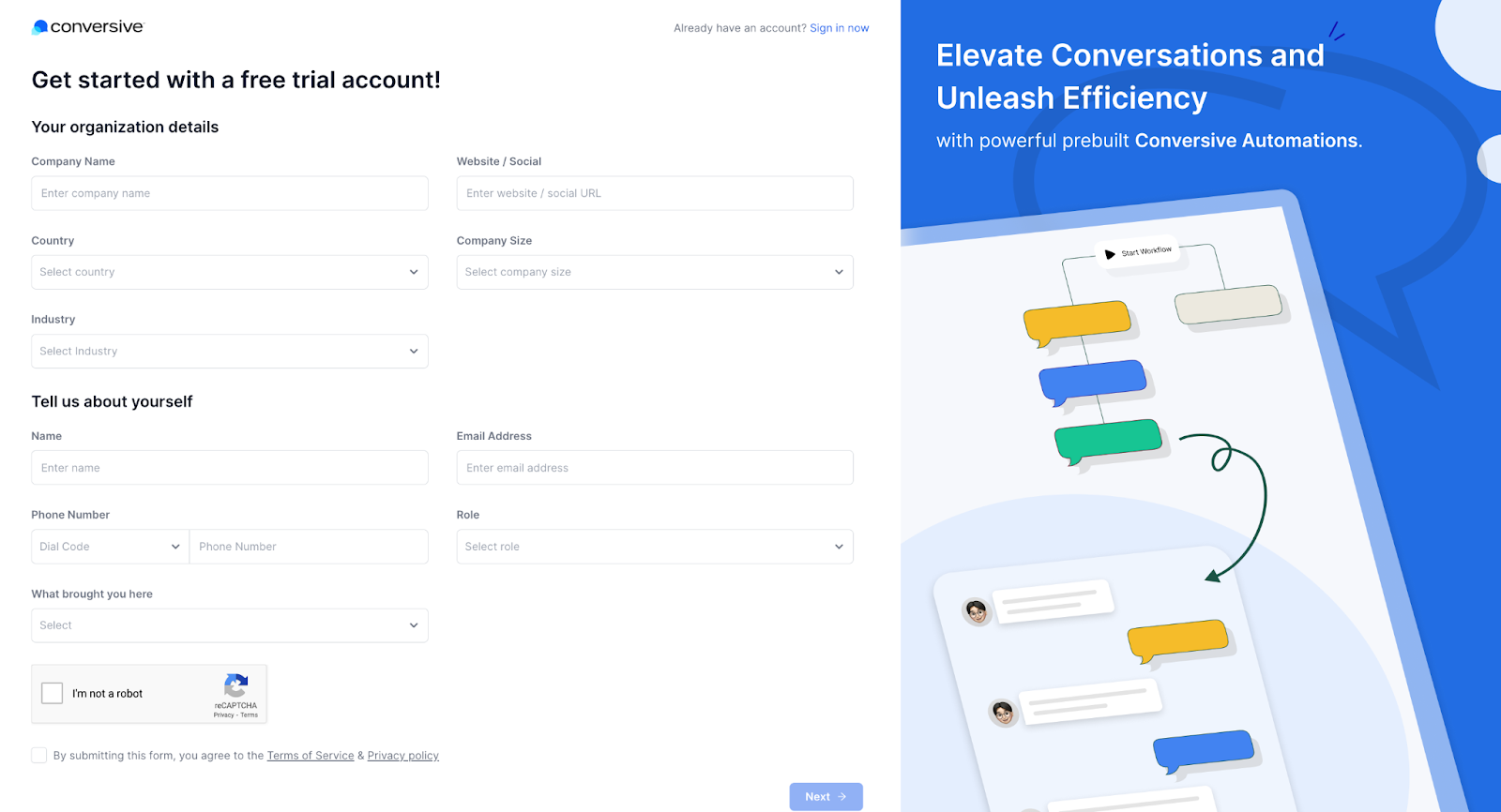
Step 1: Create a Conversive Account
Before using Microsoft SSO, you need to have a Conversive account.
Visit the sign-up page using this link: Sign Up for Conversive
Complete the form and submit your details.
Verify your email address to activate your account.
Step 2: Log in with Microsoft Azure SSO
Once your account is verified:
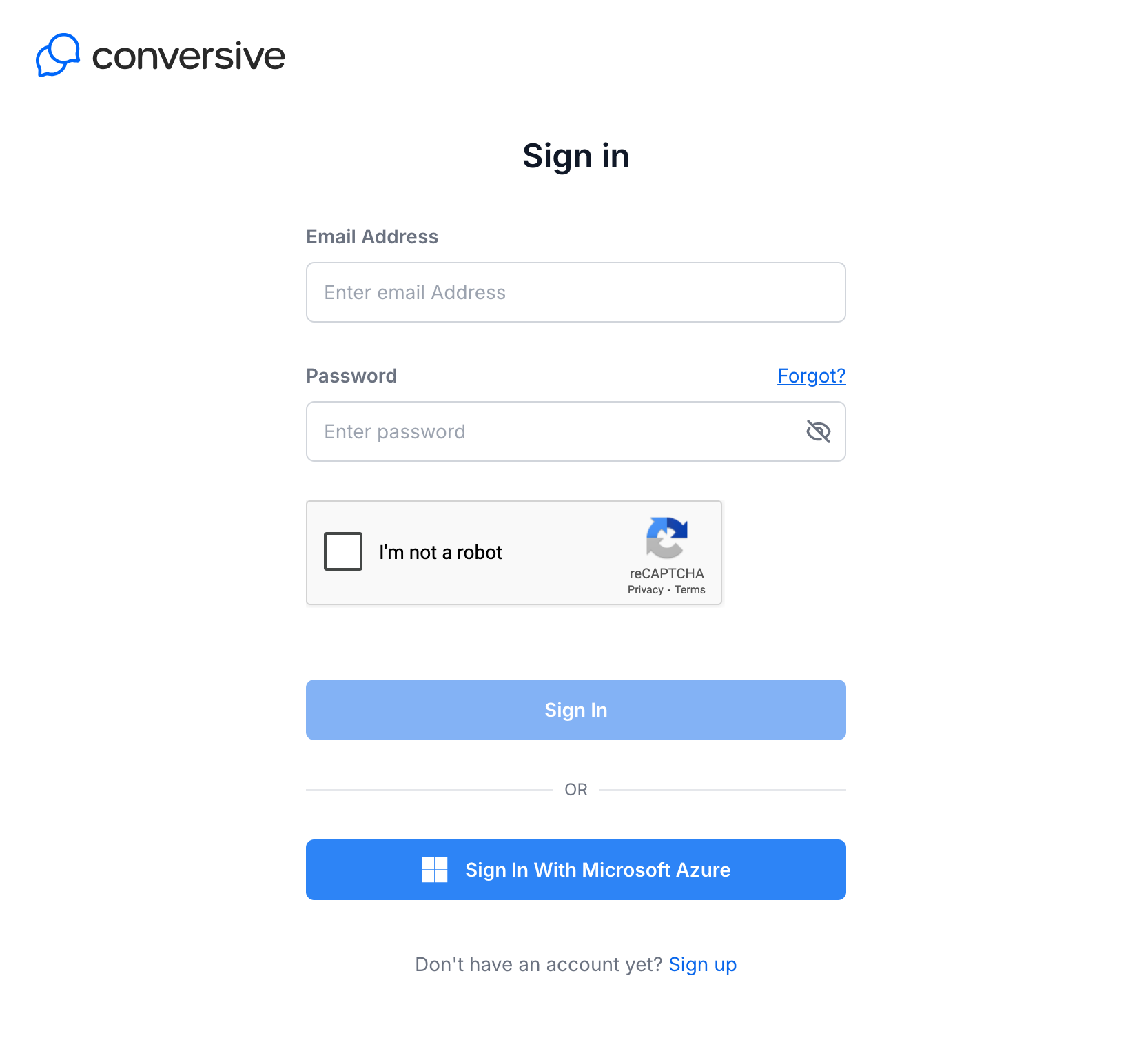
Visit the Conversive login page.
Click "Log in with Microsoft" or "Microsoft Azure SSO Login".
Enter the same email address you used while creating your Conversive account.
Upon successful authentication, you will be logged in via SSO.
Step 3: Granting Azure Access to Users
To allow your team members to use Microsoft SSO:
As an Azure administrator, assign Conversive as an application in your Azure Active Directory.
Add or invite users and grant them access to the Conversive app in Azure.
Once users have access, they can log in using Microsoft Azure SSO as explained in Step 2.
User Role Management in Conversive
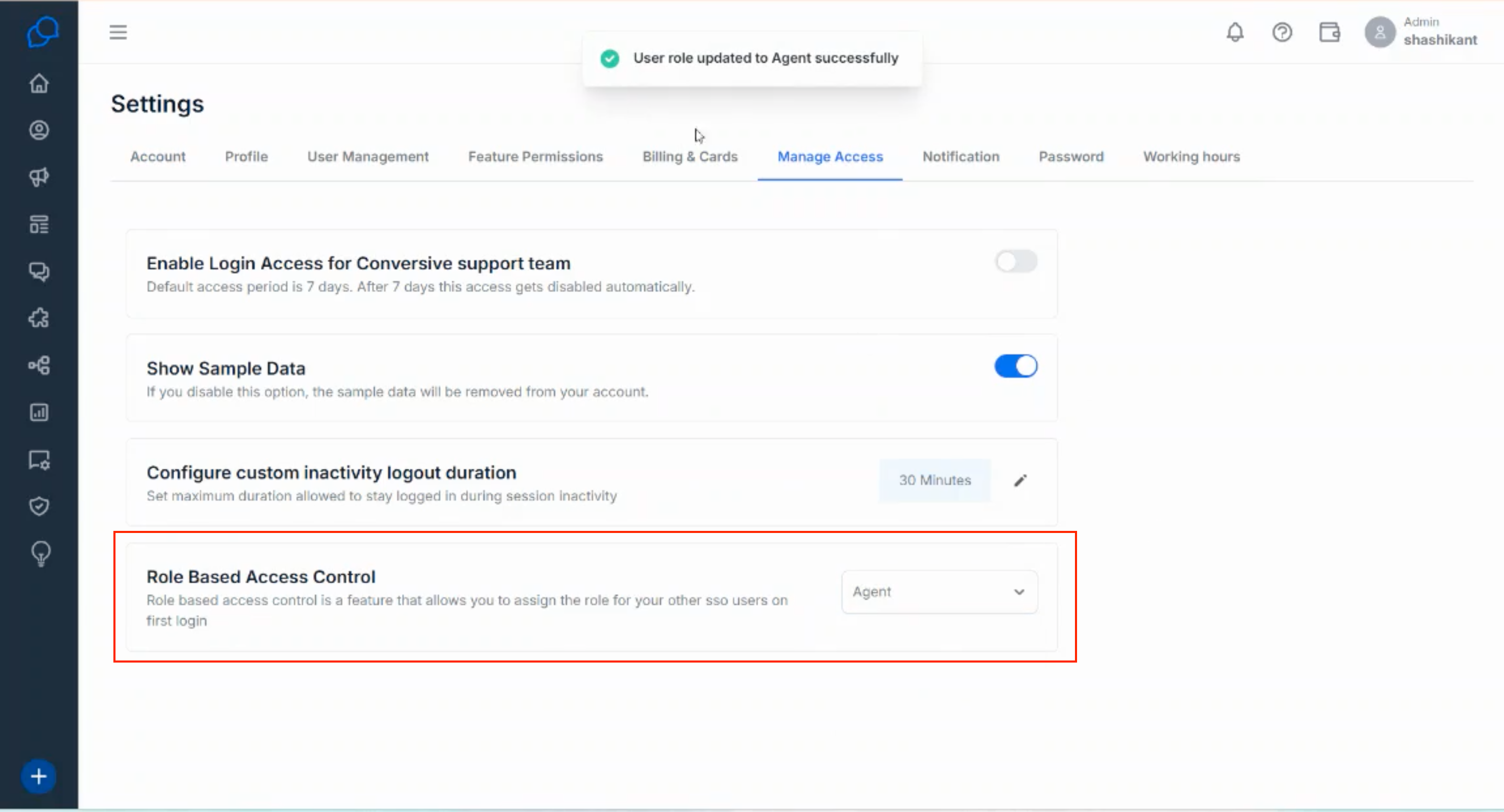
Once a user logs in via SSO, their role within Conversive can be managed by the Account Admin.
Navigate to the Manage Access page in Conversive to assign or change user roles.
Frequently Asked Questions (FAQ)
Q1: What if a user tries to log in via SSO but doesn’t have access assigned in Azure?
A: The user will see an error or be denied access. Ensure the user is added to the Conversive application in Azure AD.
Q2: Can users sign up directly with Microsoft SSO?
A: No, users must first create a Conversive account using the sign-up form with the same email they will use for Microsoft SSO login.
Q3: How are user roles determined after SSO login?
A: Roles are not auto-assigned. An admin must define them via the Manage Access section in Conversive.
Q4: Can we restrict login access only to users from our Azure tenant?
A: Yes, control access through your Azure Active Directory by assigning only relevant users to the Conversive application.
Q5: What happens if a user changes their email in Microsoft Azure?
A: They will no longer be able to log in to Conversive via SSO unless the updated email matches the one registered with Conversive.
