
Invite Your Team Members to Conversive
This section is only accessible to Admin Users.
A dedicated section to manage your users and licenses. You can view your available/used licenses and invite more users according to business requirements.
You can view the license details easily by selecting the account ID and license type. A Total and Available Licenses count is shown next to License Type.
Under Account Settings, Navigate to User Management
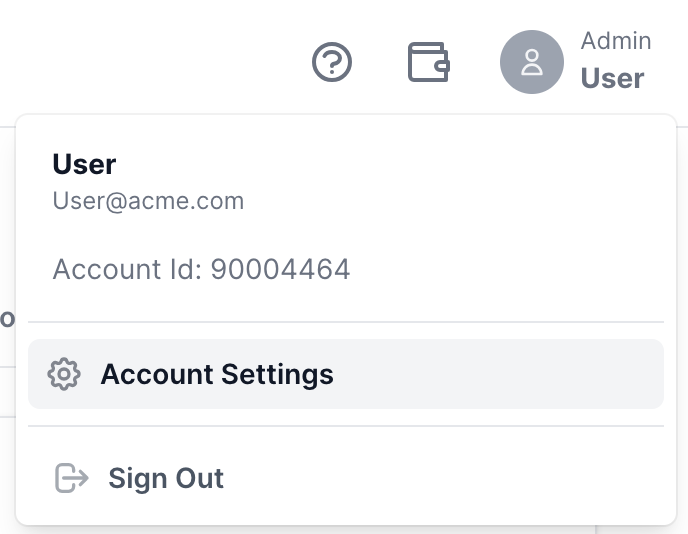
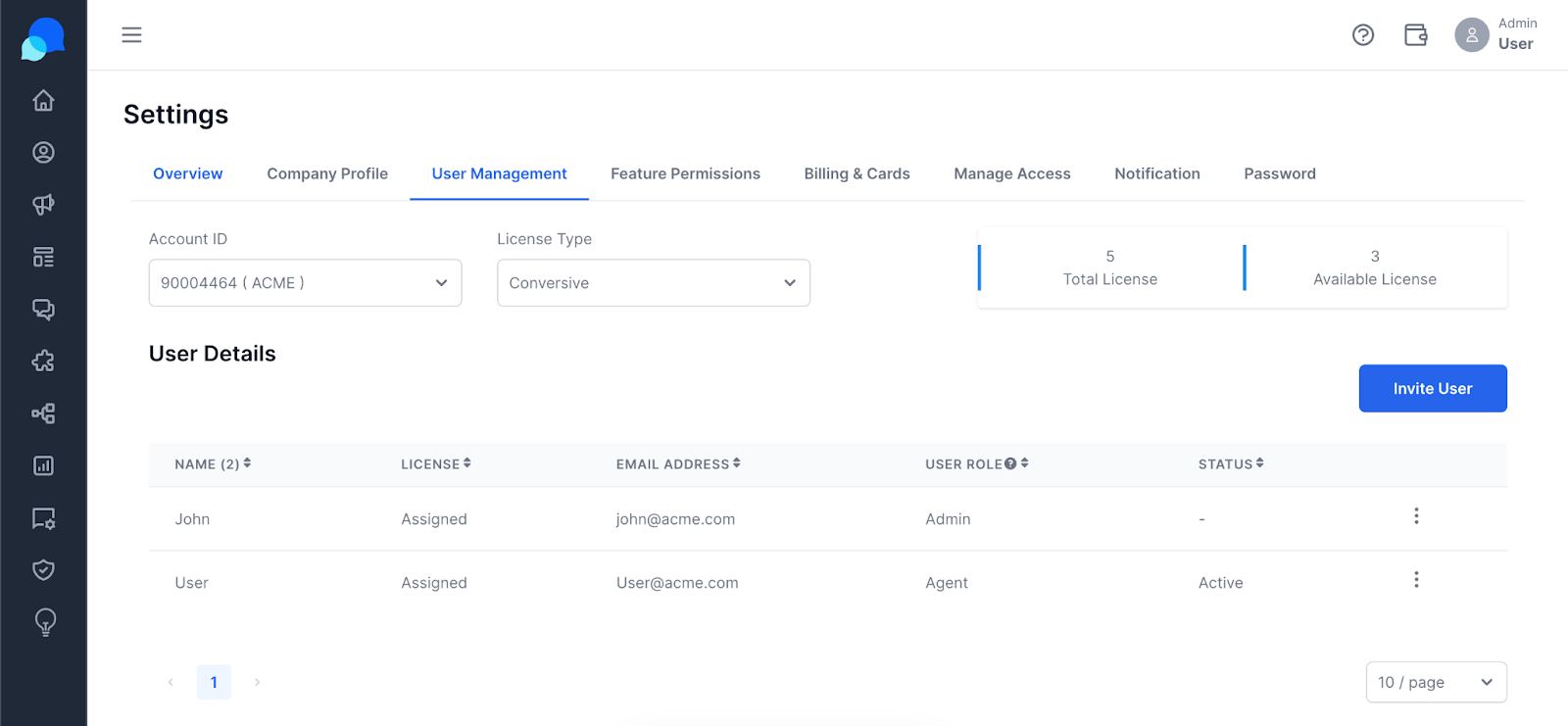
Follow the steps below to add/invite a new user to your account –
Click on Invite User
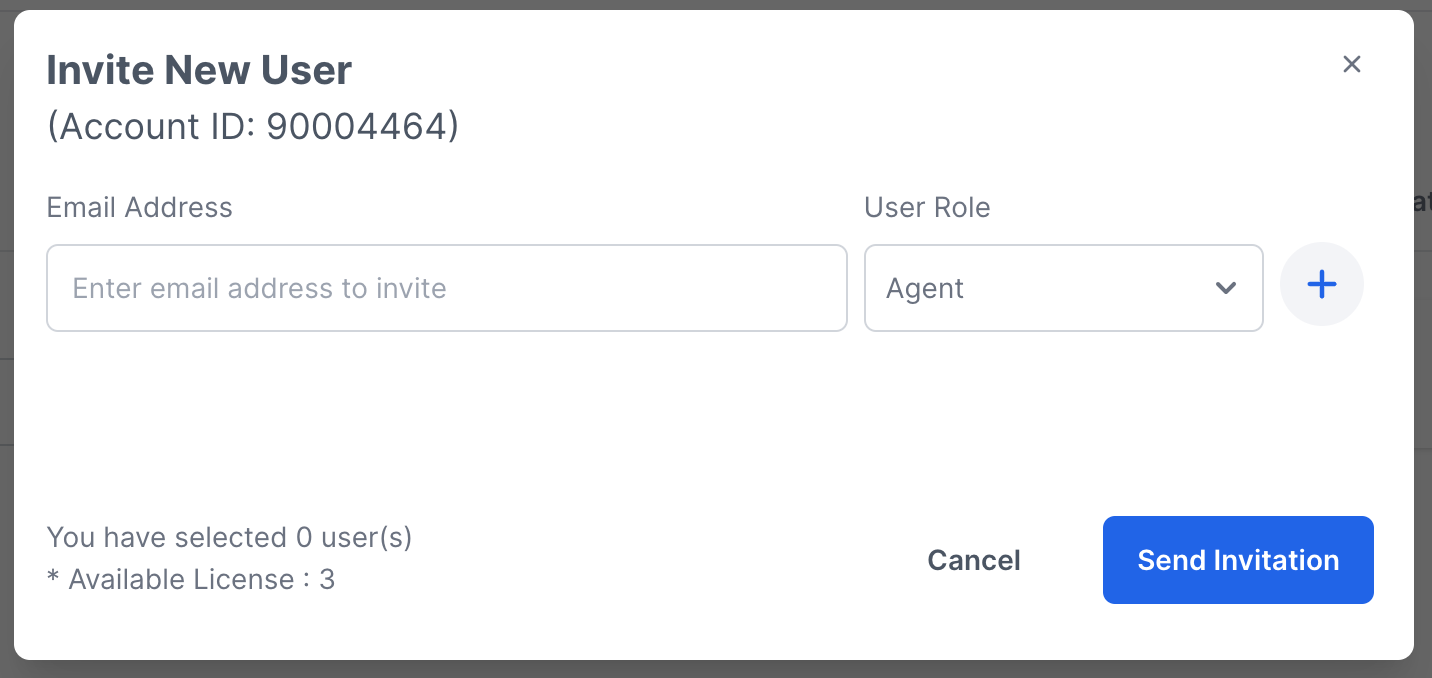
If you have enough Available licenses, you can invite a new user. If not, kindly contact care@screen-magic.com to purchase more user licenses.
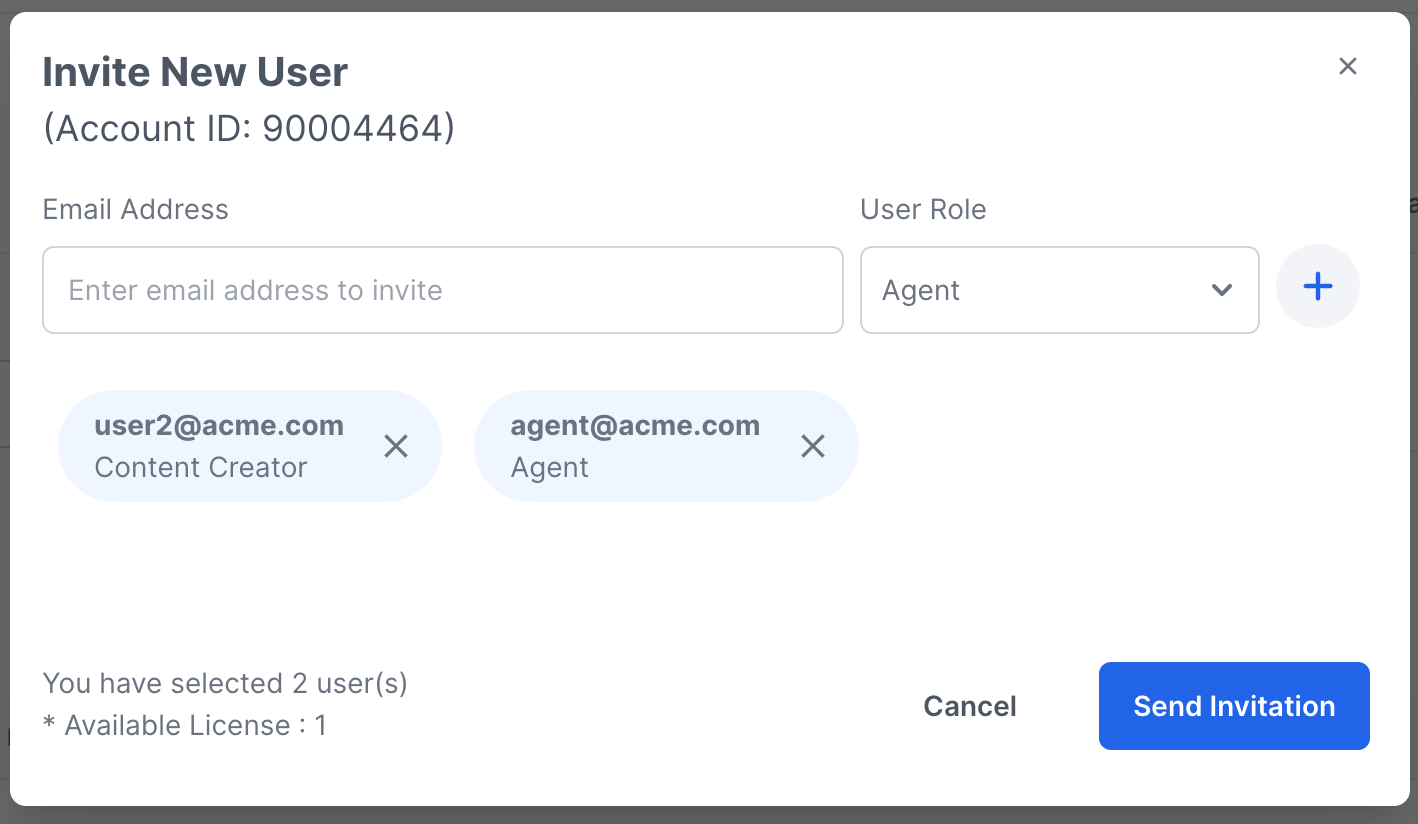
Add the email address of the users you wish to invite one by one
The count of Available Licenses will keep updating as you add users
Click on Invite. You can select user roles while sending the user invite.
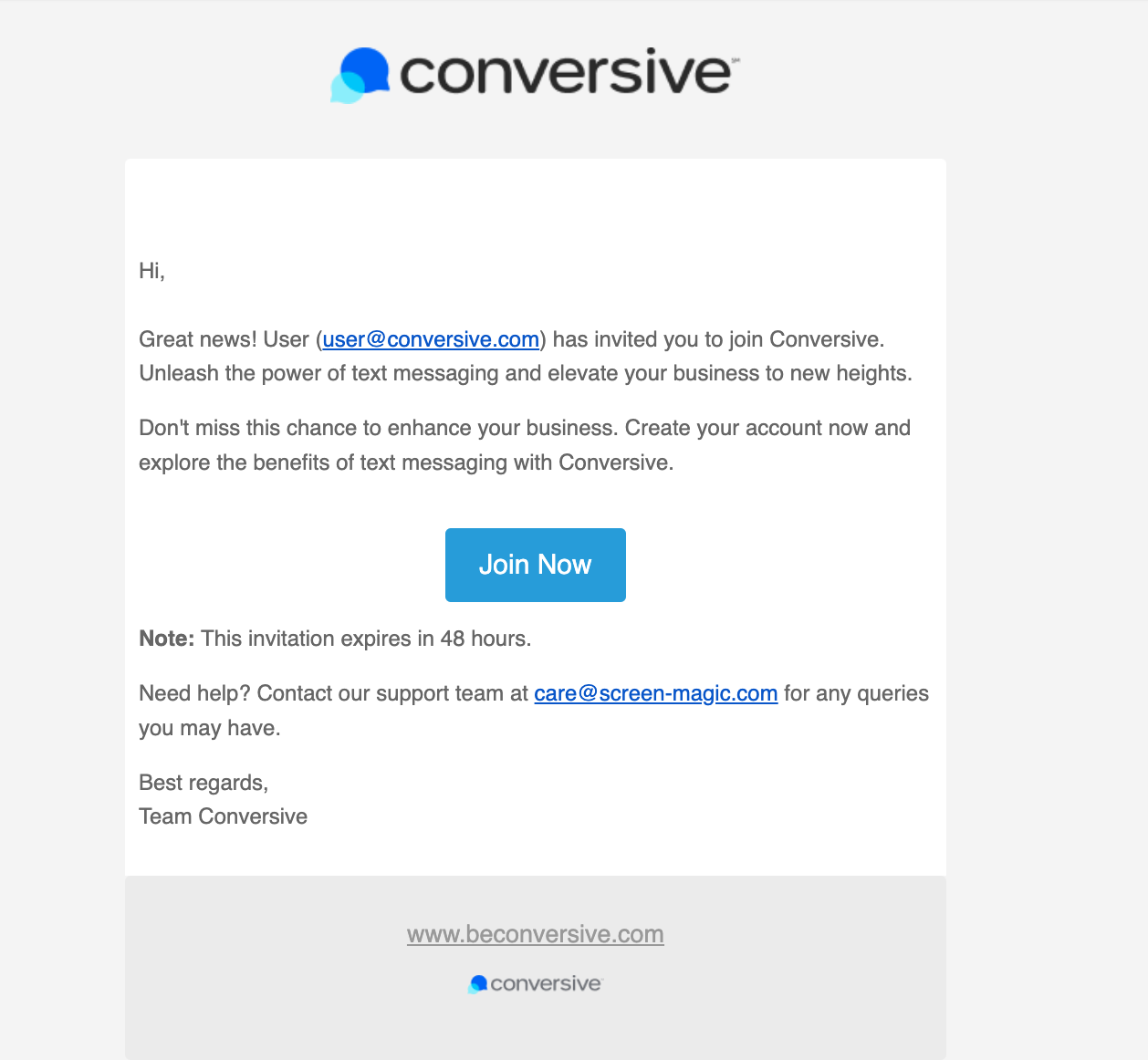
An Invitation email with the Subject "You're invited to join Conversive" will be sent to the entered email addresses
You can keep track of the invite status in the User Details table
Follow the steps below to join Conversive after receiving an Invitation -
Click on the "Join Now" link in the Invitation Email
Follow the relevant Sign-Up mechanism for your business and start using Conversive Web Portal services.
To know more about managing user please checks out the documentation on User Management
