
Overview
This section is only accessible to Admin Users.
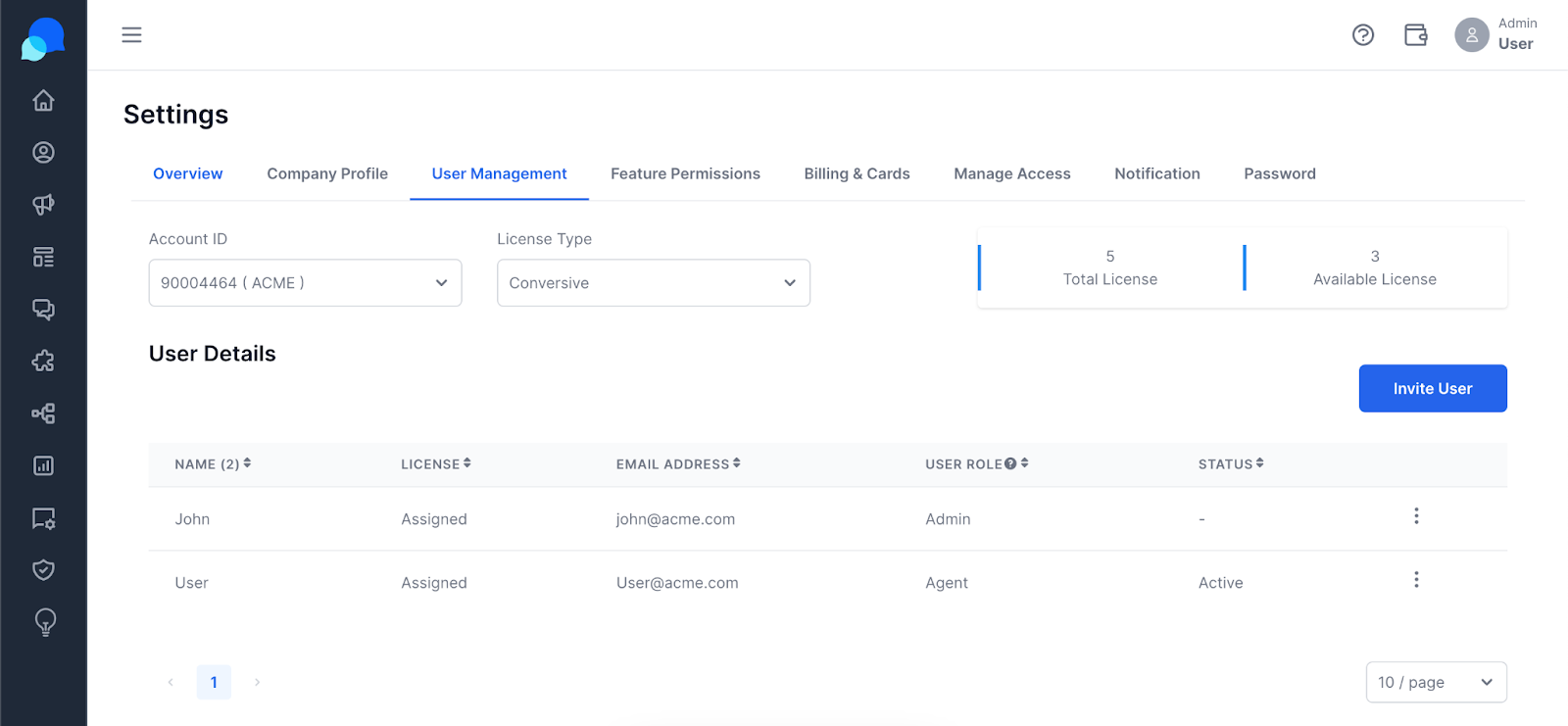
A dedicated section to manage your users and licenses. View your available/used licenses and invite more users as per business requirements.
You can view the License details by selecting Account ID and the License Type with ease. A count of the Total licenses and Available Licenses is shown next to License Type.
User Details
All the users in the selected Account are listed in the User Details list. You can carry out the following actions here –
Invite User
Change User Role
Remove License
Delete User
How can I invite more users in my Conversive account?
Follow the below steps to add/invite a new user to your account –
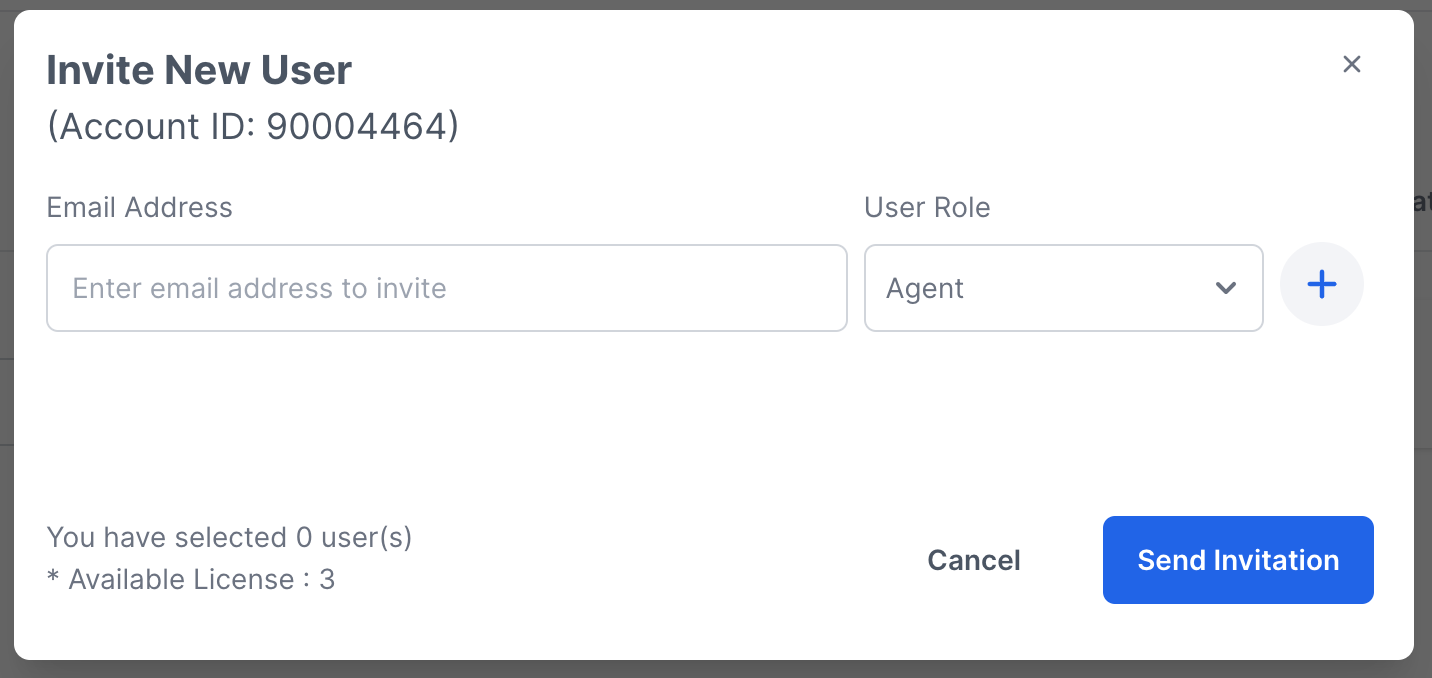
Click on Invite User
If you have enough Available licenses, you will be able to invite a new user. If not, kindly contact care@screen-magic.com to purchase more user licenses.
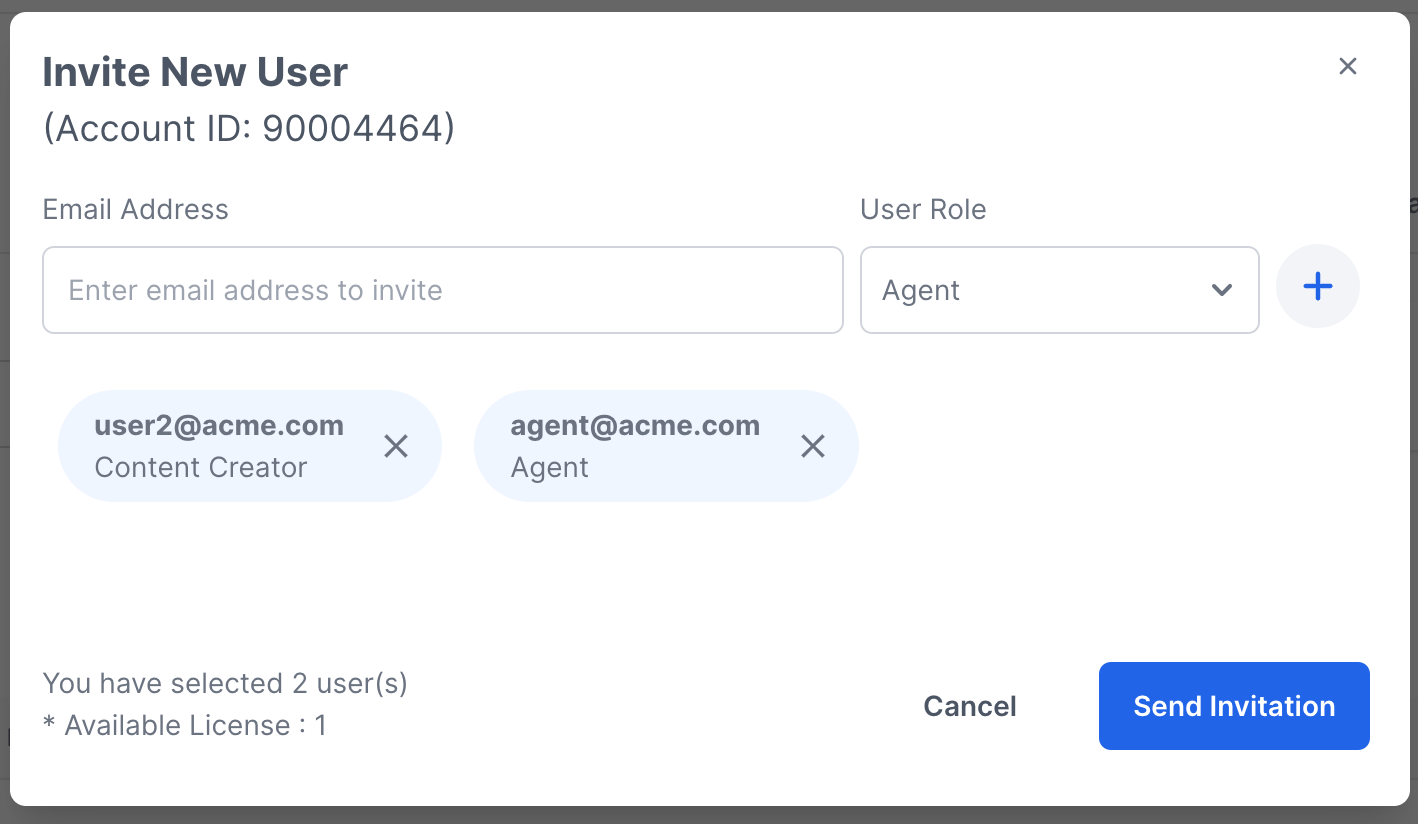
Add the email address of the users you wish to invite one by one
The count of Available Licenses will keep on updating as you add users
Click on Invite. You can select user roles while sending the user invite.
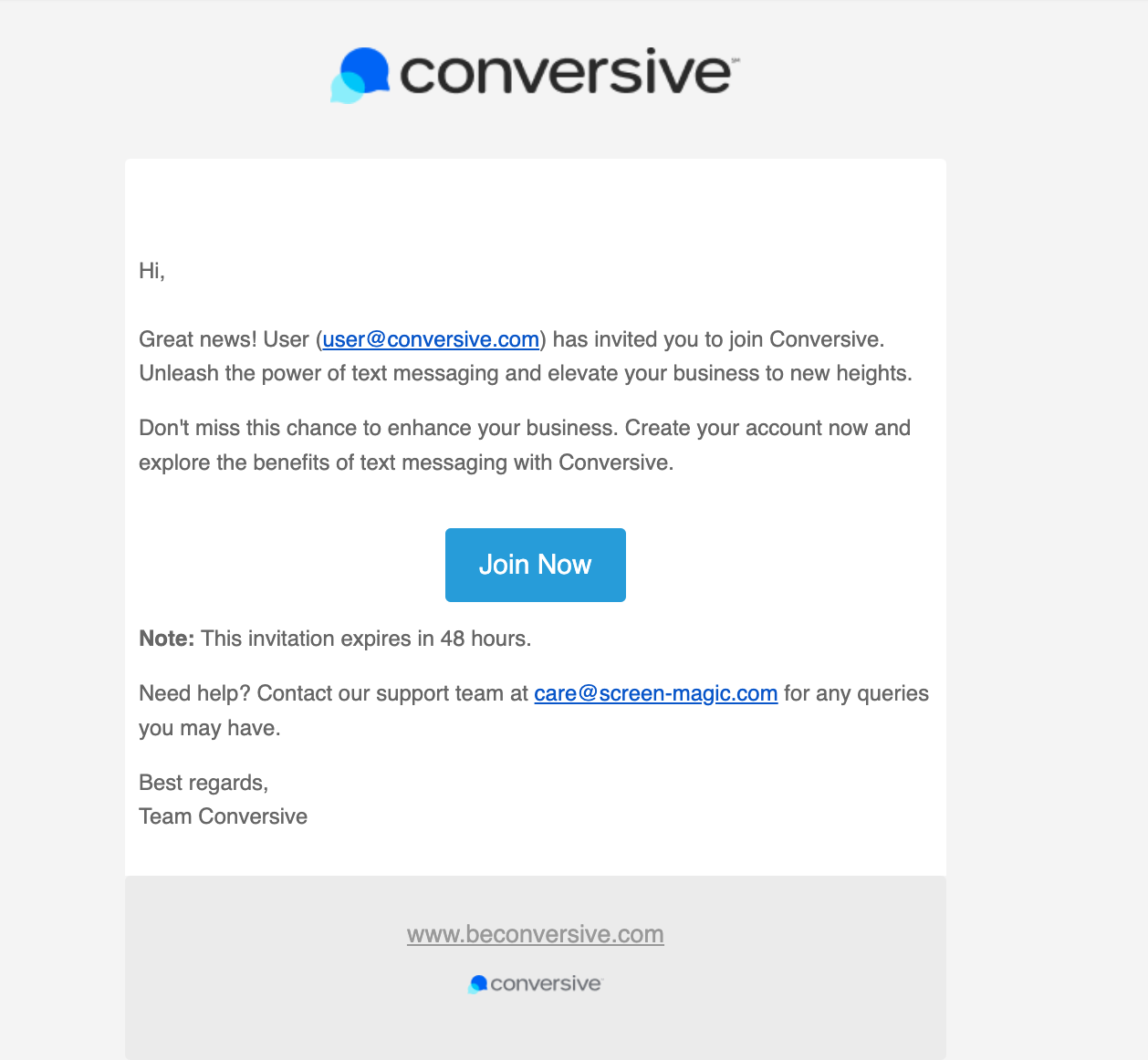
An Invitation email with the Subject “You're invited to join Conversive” will be sent to the entered email addresses
You can keep track of the invite status in the User Details table
Follow the below steps to Join Conversive on receiving an Invitation -
Click on the “Join Now” link in the Invitation Email
Follow the relevant Sign-Up mechanism for your business and start using Conversive Web Portal services.
How can I change user role for a user?
There are 4 User Roles available on Conversive Web Portal you can check the available permission for each role from Feature Permission Tab
Admin User – All the services of Web Portal are accessible
Content Creator
Monitoring User
Agent
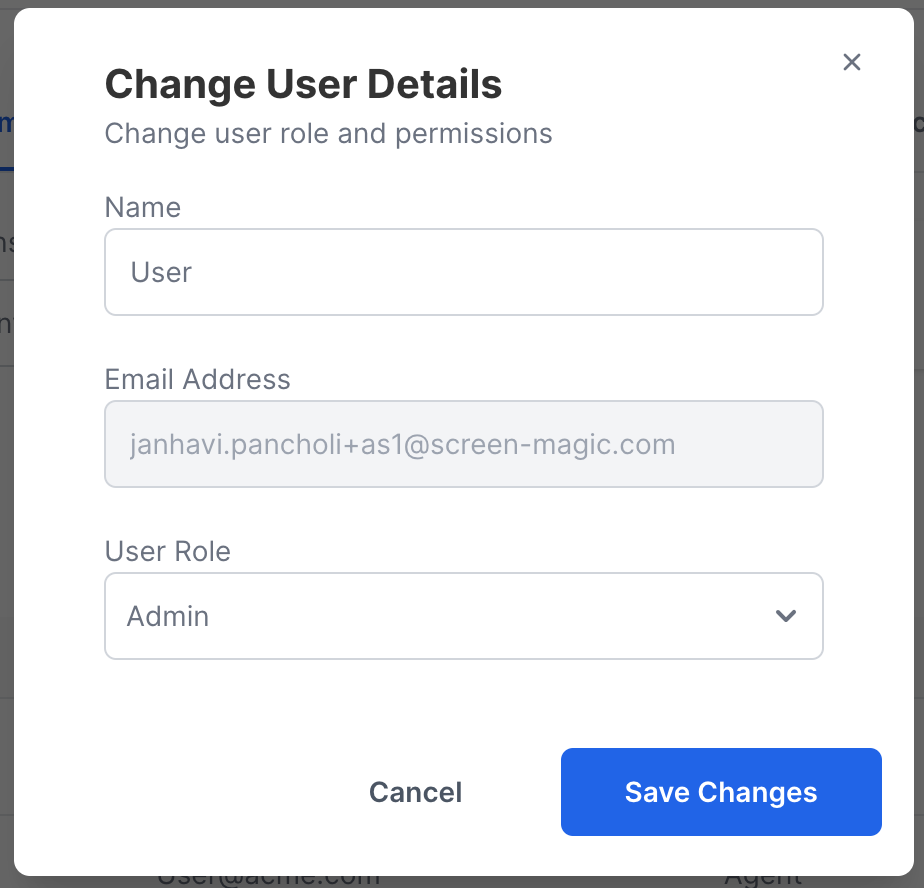
Hover over the user record for which you wish to change the user role and click on the Ellipsis icon. Click on Change User Role.

Select the required Role in the Dialog box
Click on Save Changes button
Based on the User role saved, the access rights of the user will change
How can I remove license for a user?
Hover over the user record for which you wish to change the user role and click on the Ellipsis icon. Click on Unassign License.
Click on Remove to confirm the removal of the license.
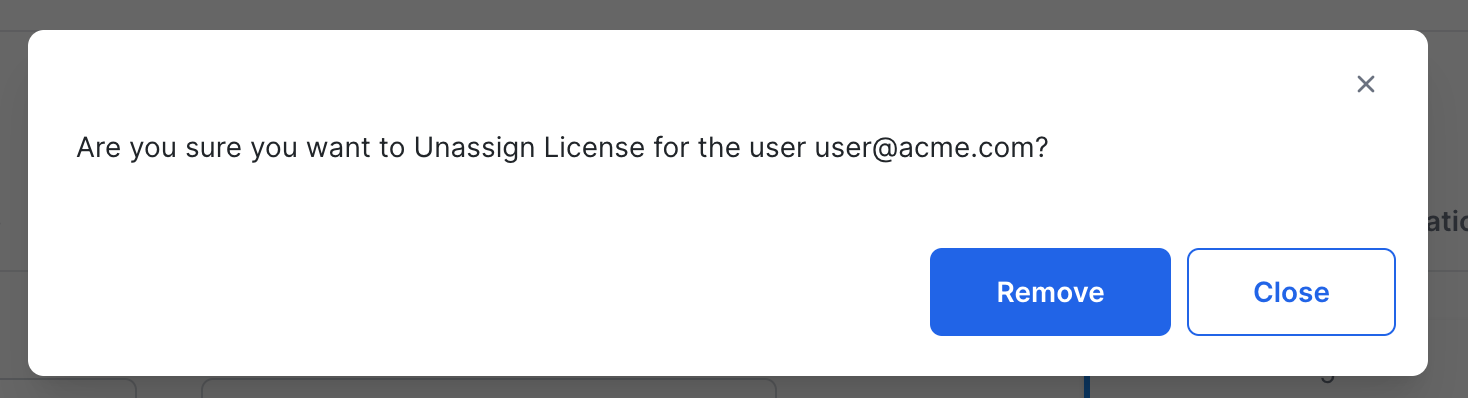
The user will be removed from the User Details list and a License will be added to the Available License Count.
The License will be added to the Available License Count.

How can I Delete User?
Hover over the user record you want to Delete and click on the Ellipsis icon. Click on the Delete User button.
A confirmation box will appear. Click on the Delete button.
Once you delete the user, their license will be added to the Available License Count.
Note: If you wish to avail this feature and not have access to it, please contact care@beconversive.com.
Frequently Asked Questions
What all permissions are available to each role?
The available permissions for each role can be viewed in the Feature Permission tab in the Account Settings.
Can I have more than one admin user?
No, you cannot have more than one admin user.
Can I change the user role to admin for another user?
Yes, you can change another user's role to admin, but your admin access will be revoked and provided to that user.
Can I delete a user and invite a new user?
Yes, you can delete a user and invite a new user. Once you delete a user, their license will be added to the Available License Count, allowing you to invite another user.
Can I give additional permission to an individual user?
No, existing permissions cannot change for individual users; however, you can change their user role, which may grant them different permissions based on the new role selected.
