
Email Notification
In this section, you have the option to activate email notifications for incoming messages from specific sender IDs. This means that all conversation owners will receive notifications for all incoming messages.
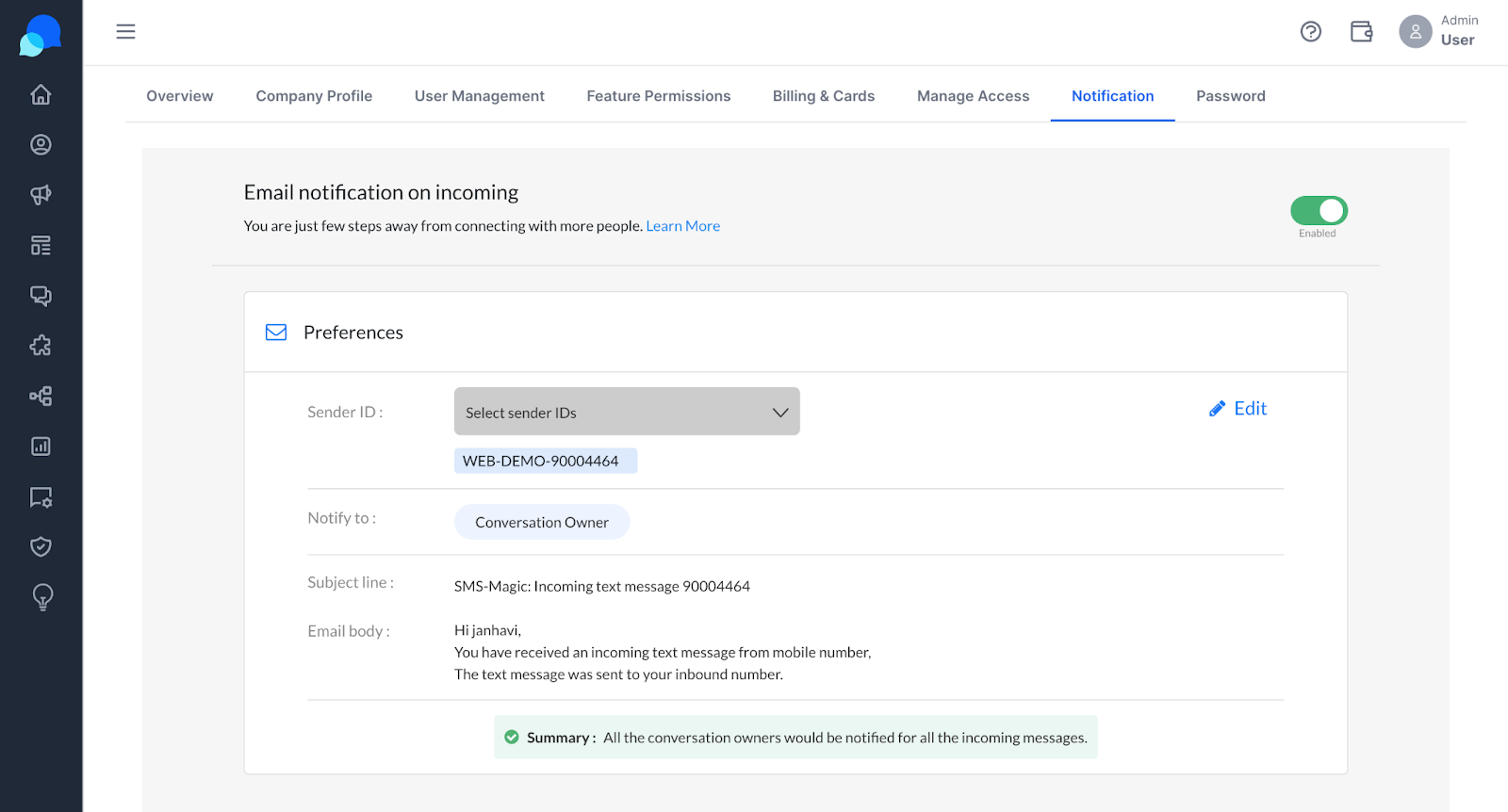
Now you can enable Email Notifications for Inbound Messages on the SaaS Portal.
When an account is created for the SaaS Portal and when an inbound message is received on a Sender ID, and if the Email Notification setting is enabled, a notification will be sent to the conversation owner about the inbound message.
This setting will be enabled by default for new users who sign up for the free trial and will get disabled after the Trial plan is converted to a Payee. This feature will be accessible only to users who have a Portal license.
When the setting is enabled, it will be applicable to all Sender IDs. Whenever an inbound message is received on any Sender ID, it would send an email notification to the conversation owner. But the user will have the option to edit and select a specific Sender ID. Email notifications will be applicable for all channels but will not get triggered for conversations where the bot is active.
Enable Email Notification for Inbound Messages on SaaS Portal
Follow the below steps to enable email notification settings for inbound messages on the SaaS Portal:
Select the Sender IDs from the Sender ID drop-down.
All the selected Sender IDs will be listed, as shown in the image below:
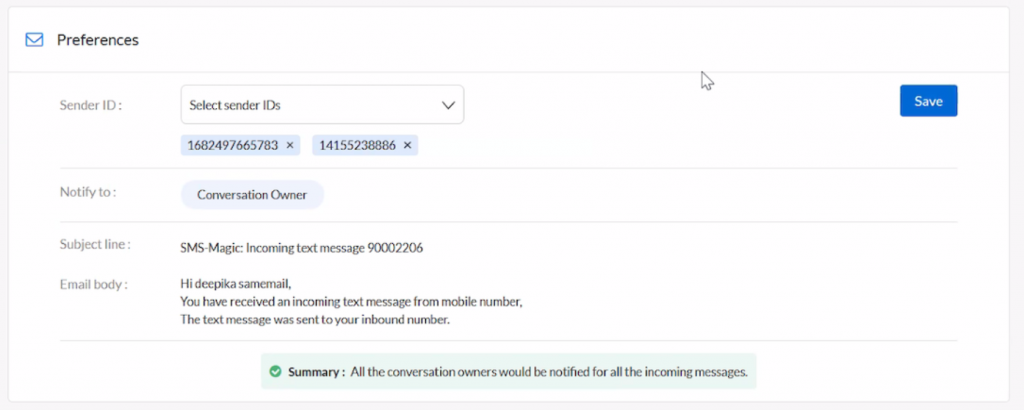
You can de-select Sender IDs from the list. Once done, the changes will be saved and you will get a pop-up message as shown in the image below:
Click on the Save button
Once a message is sent, the conversation owner will get the notification email for every message, as shown below:
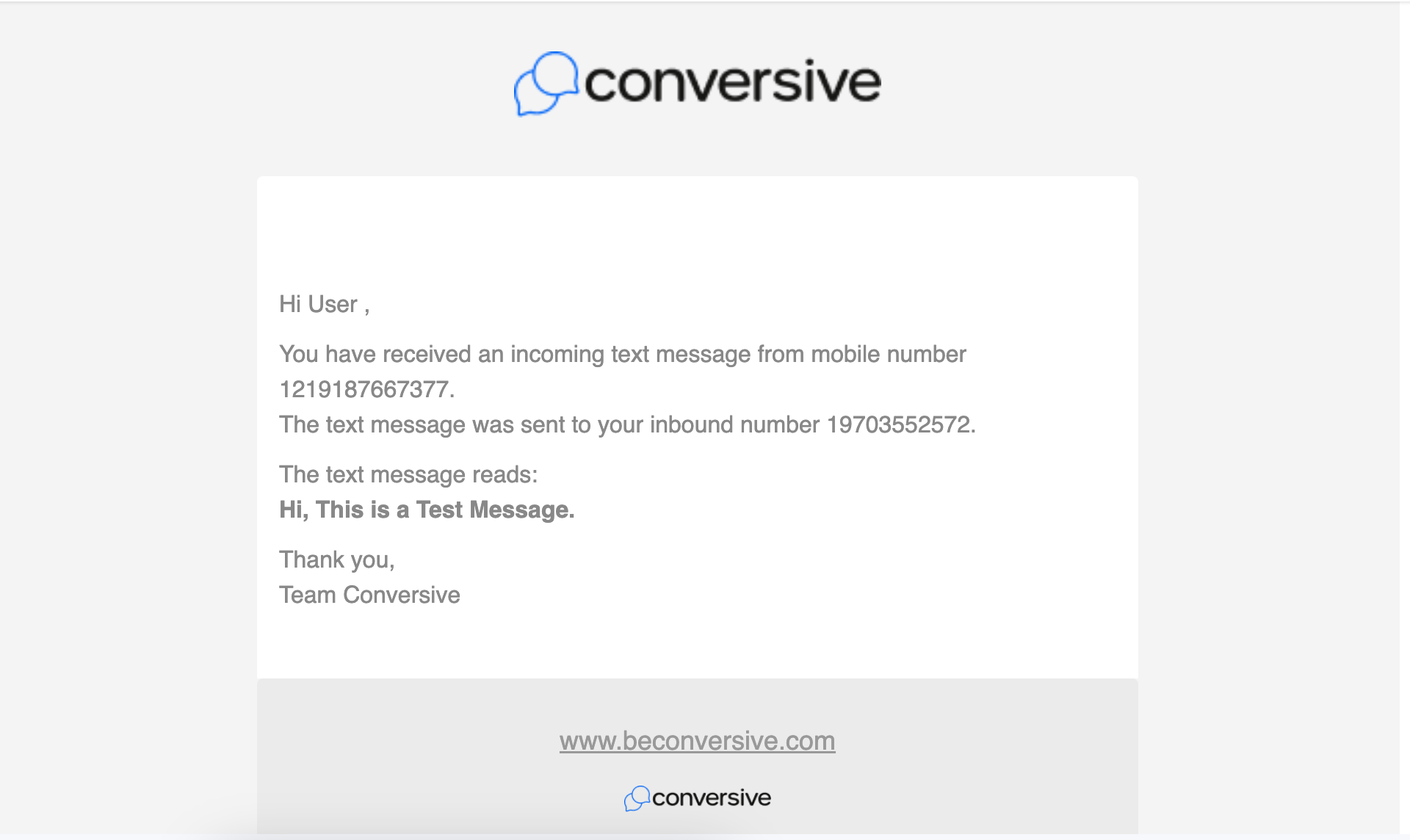
Note: This message template is pre-defined in the settings section. As soon as a message is sent to the user, the user receives an email notification in this message template.
An email notification will also be sent to the conversation owner for every inbound MMS.
Note: This MMS message template is pre-defined in the settings section. As soon as an MMS is sent to the user, the user receives an email notification in this message template.
